
Good editing makes the difference between a forgettable video and one viewers watch to the end. Whether you want to speed up your workflow, improve color and audio, or add polished motion graphics, the right software helps you produce consistent, engaging videos that grow your channel. In this guide you’ll find five practical options—ranging from full post‑production suites to lightweight animation tools—so you can pick the one that fits your skills, budget, and goals. Choosing well will save you time, improve watch time, and help you present a more professional channel.
Top Picks
| Category | Product | Score |
|---|---|---|
| 🏆 Best Overall | Blackmagic Design DaVinci Resolve Speed Editor Bundle (DaVinci Resolve 18 Studio) | 95/100 |
| 💡 Best Innovation (AI & Generative Tools) | CyberLink PowerDirector & PhotoDirector 2026 | 88/100 |
| ⚡ Best Performance | VEGAS Pro Suite 21 | 90/100 |
| 🎨 Best for Graphics & Thumbnails | CorelDRAW Graphics Suite (1 Year Subscription) | 82/100 |
| 💰 Best Value / Beginner Animation | Moho Debut 13.5 | 80/100 |
How We Picked These Editors
You want software that helps you publish reliably while improving quality. We evaluated each product on: relevance to YouTube workflows (timeline, multicam, captions, export presets), speed and performance on typical creator hardware, learning curve and available tutorials, unique features (AI tools, color grading, audio post), price and ownership model, and extras that matter to creators (asset libraries, motion templates, plugin support).
We also considered user feedback about stability and activation experience so you don’t run into avoidable setup problems.
DaVinci Resolve Speed Editor Bundle

If you edit videos for YouTube, this bundle gives you a tactile shortcut to speed up the boring parts of trimming and scrubbing. The Speed Editor is compact and portable, so you can edit on a laptop via Bluetooth or plug in with the included USB‑C cable.
The big search dial and dedicated buttons are built around the Cut page workflow in DaVinci Resolve, so once you learn the button layout it becomes second nature. For daily edits it cuts down on mouse clicks and scrolling; for special projects or long-form edits it keeps your hands out of menus and focused on rhythm and timing.
If you want a more hands-on, efficient editing flow with Resolve, this is a practical, well-built tool worth trying.
What People Say
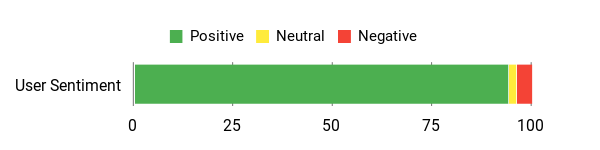
People say it takes a little time to learn, especially the search dial and Cut‑page workflow, but once you adapt it noticeably reduces clicks and speeds edits. Reviewers consistently call it well built and a helpful companion to Resolve.
Overall Sentiment: Positive
🗣️ Gummy Roach
Setup is straightforward and the Speed Editor really shines on Resolve’s Cut page. The free‑spinning search dial feels different from old shuttle knobs and takes practice, but once you’ve got it you can navigate the timeline and trim much faster. Connects via Bluetooth or USB‑C and feels solidly built.
🗣️ Cinema Legion
DaVinci Resolve Studio plus the Speed Editor gives you a tactile, faster workflow — trimming, scrubbing and cutting feel more intuitive. Activation can be a bit confusing, so download Studio from Blackmagic and follow a how‑to video for activation. Once set up, it’s a real workflow booster.
Usability
| Aspect | Ease Level | Notes |
|---|---|---|
| Setup | Easy | Pairing over Bluetooth or plugging in with USB‑C is straightforward; some users prefer a wired connection for charging and stability. |
| Learning Curve | Moderate | Buttons and the free‑spinning dial take a few sessions to master, especially if you’re used to mouse and keyboard only. |
| Portability | Easy | Compact and battery‑powered, so you can edit on location without a tangle of cables. |
| Controls | Moderate | Dedicated keys map to Resolve functions nicely, but some advanced edit actions still require practice or keyboard combos. |
Performance & Speed
Designed to speed up routine editing tasks: scrubbing with the search dial and using dedicated cut/trim buttons feels faster than relying on a mouse. It shines on the Cut page and noticeably reduces repetitive clicks during longer sessions.
Integration
| Software | Integration Quality |
|---|---|
| DaVinci Resolve | Excellent (designed for it) |
| macOS / Windows | Good (connects via Bluetooth or USB‑C) |
| Other NLEs | Limited (primarily built to work with Resolve) |
Security Features
| Feature | Protection Level |
|---|---|
| Activation Card / License | Moderate (activation ties software to your account/machine) |
| Bluetooth Pairing | Standard (regular Bluetooth pairing security) |
| USB‑C Wired Connection | High (direct physical connection) |
Collaboration
This is a single‑user hardware controller — it doesn’t offer cloud or multi‑user collaboration features, but it can speed up individual edits that are later shared with a team.
Updates & Upgrades
The activation card gets you access to the Studio version of DaVinci Resolve; Blackmagic periodically releases updates and feature upgrades for Resolve, which you download from their site. Note that some reviewers found the activation process a little confusing and recommend following an official guide or a short how‑to video.
Key Benefits
- Speeds up timeline navigation and trimming
- Designed specifically for DaVinci Resolve workflows
- Portable with built‑in battery and Bluetooth
- Physical jog dial for tactile scrubbing
- Solid build and compact form factor
Rating: 4.7 (total: 616+)
CyberLink PowerDirector & PhotoDirector 2026
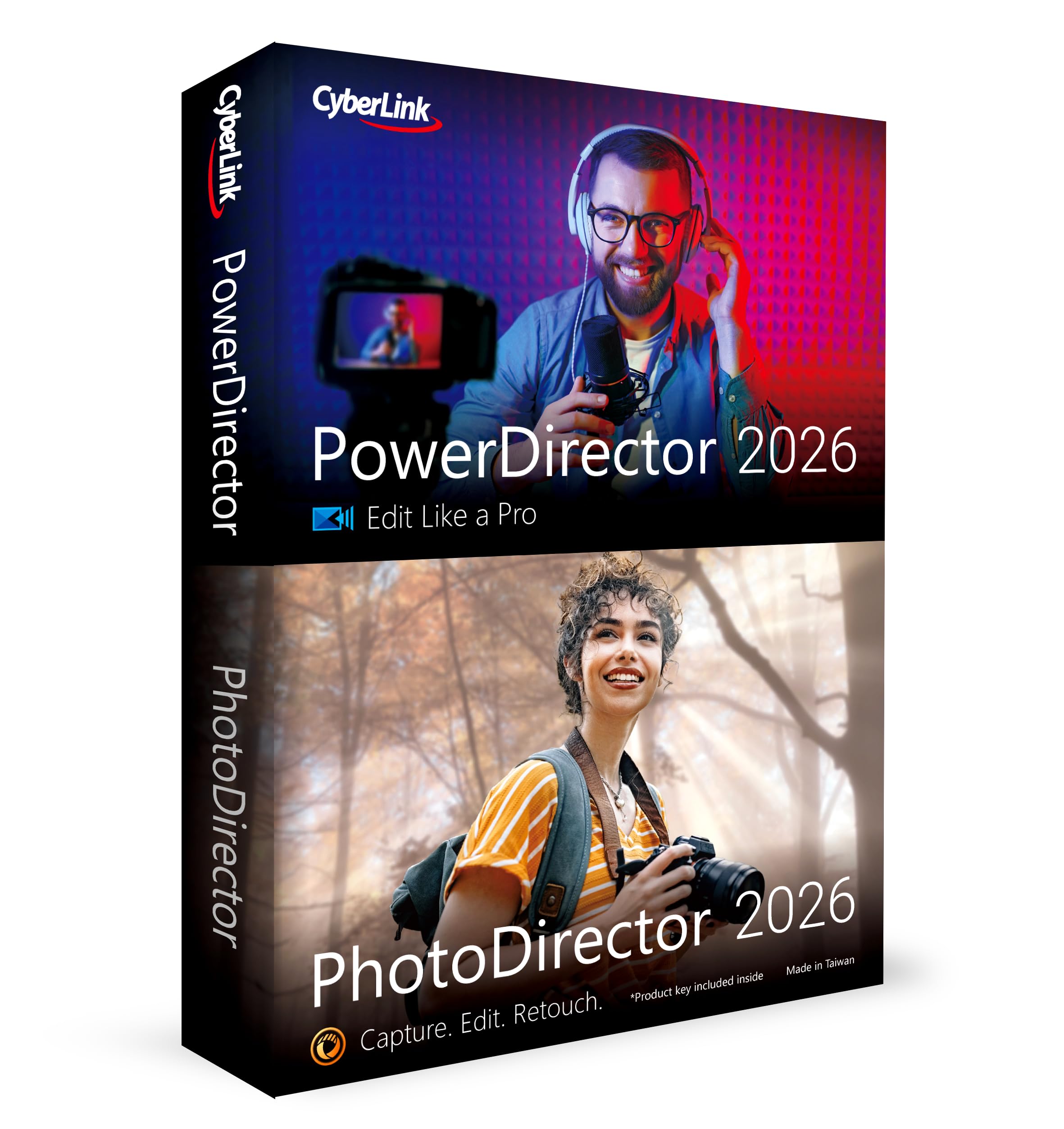
If you make videos for YouTube, this combo gives you a lot of practical tools without feeling overwhelming. You get PowerDirector for timeline editing and PhotoDirector for photo touch-ups, with AI helpers that speed up routine fixes—quick AI actions, batch edits, denoise/deblur, and face retouching.
For everyday vlogs you can batch-fix photos, clean up audio and quickly assemble clips using templates. For special projects or older clips you want to revive, frame interpolation smooths grainy footage and enhanced screen recording captures webcam and screen separately so you can fine-tune placement in post. The interface leans beginner-friendly but still offers depth as you get more comfortable. If you’re looking for something that shortens editing time and helps your channel look more consistent, this is a solid, approachable option.
What People Say
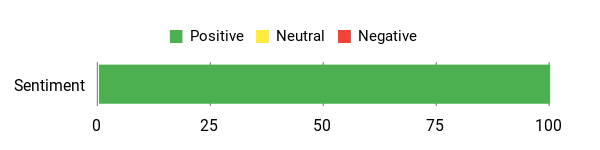
People say the AI features make routine fixes fast and approachable, the apps are friendly for beginners but still useful for intermediate creators, and the frame interpolation and screen-recording features stand out as practical tools. A few users mention occasional upgrade prompts for cloud services.
Overall Sentiment: Positive
🗣️ alberto
The AI tools are genuinely time-savers — Quick Actions analyzes photos and applies tailored edits, and batch editing lets you fix sets of images in one go. Frame interpolation rescued older, grainy footage and made it noticeably smoother, while enhanced screen recording (screen + webcam exported separately) gave flexibility in editing.
🗣️ Tim D
Very easy to use for basic to mid-level edits. PhotoDirector handles object removal and quick AI touch-ups well, and PowerDirector is great for merging clips, audio tweaks and using templates. CyberLink also provides plenty of tutorial videos, though you’ll see occasional prompts to upgrade to cloud or subscription services.
Usability
| Aspect | Ease Level | Notes |
|---|---|---|
| Setup | Easy | The product ships as a download code, so installation is straightforward — you enter a code and install the apps on Windows. |
| Learning Curve | Moderate | Basic edits and AI quick tools are intuitive; mastering deeper controls and templates takes a few sessions. |
| Batch Editing | Easy | One-click batch edits for retouching and resizing save hours when you have many photos or similar clips. |
| Screen Recording | Moderate | Captures screen and webcam together and can export them as separate clips — powerful but you may want to tweak settings for best results. |
| Templates & Tools | Easy | Built-in templates and tutorials help you produce polished videos without learning every tool at once. |
Performance & Speed
The AI features speed up common tasks like denoising, deblurring and batch fixes, and frame interpolation noticeably improves playback smoothness for older footage. For typical YouTube edits the workflow feels efficient; heavy projects depend on your PC specs but the tools themselves are optimized for quick results.
Integration
| Software | Integration Quality |
|---|---|
| Windows | Excellent (designed for Windows-based editing) |
| PhotoDirector ↔ PowerDirector | Excellent (both apps bundle well together for photo-to-video workflows) |
| Cloud Services / Asset Libraries | Good (optional cloud storage and brand assets available to share across projects) |
Security Features
| Feature | Protection Level |
|---|---|
| Local AI Processing | High (lets you process and edit files on your machine) |
| License Activation | Moderate (product uses activation codes tied to your account or device) |
| Optional Cloud Storage | Standard (cloud is opt-in and follows typical provider protections) |
Collaboration
Brand Kits and cloud storage make it easier to keep assets and styles consistent across projects and team members, but there aren’t advanced multi-user editing tools built into the desktop apps — sharing is mainly via exported assets or cloud folders.
Updates & Upgrades
CyberLink releases updates and tutorials periodically; users get downloadable updates from the company. Note that the software sometimes prompts upgrades to cloud or subscription services, which you can ignore if you prefer the standalone package.
Key Benefits
- AI Quick Actions and batch editing save time on repetitive photo fixes
- AI Image Enhancer (denoise, deblur) and face retouch for cleaner shots
- Frame interpolation smooths older or low-frame-rate footage
- Enhanced screen recording exports screen and webcam as separate clips
- Brand Kits help keep visuals consistent across videos
Rating: 5.0 (total: 5+)
CorelDRAW Graphics Suite
If you make videos for YouTube, CorelDRAW is a smart companion for all the visual bits that help your channel stand out. You get a proper vector tool for crisp thumbnails and channel art, PHOTO‑PAINT for quick image touch-ups, a font manager to keep typography consistent, and CorelDRAW Web when you need to tweak assets on the go. It’s especially handy for thumbnail templates, end screens, overlays, lower thirds and polished social promos. The interface gives you familiar design workflows without feeling like it’s built only for pros, and subscribers get cloud assets and extras that speed up repetitive tasks.
If you want to lift your channel’s branding and thumbnail game without wrestling with complex tools, this is an approachable, feature-rich option.
What People Say
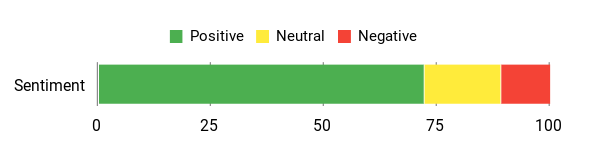
Users praise CorelDRAW’s long-standing reliability and robust import/export filters, which help when you’re sharing files with agencies or collaborators. A few people point out setup and activation hiccups or hardware requirements, so make sure your machine meets the specs before you install.
Overall Sentiment: Positive
🗣️ Wayne Hesler-Mondore
We have been using Corel since 1992, it’s always been our goto software with numerous import/export filters it allows us to work with many agencies and people to produce hi-end graphics and print work.
🗣️ Ossai Gabriel
Got the subscription started
Usability
| Aspect | Ease Level | Notes |
|---|---|---|
| Setup | Moderate | Installation is straightforward but requires online authentication; subscribers must re-authenticate periodically. |
| Learning Curve | Moderate | Basic tasks like making thumbnails or simple edits are easy to pick up; deeper layout and vector work takes a bit more practice. |
| Templates & Assets | Easy | Packed templates, brushes and stock assets speed up creating consistent branding for videos. |
| Exporting & Formats | Easy | Wide format support (AI, PSD, PDF, JPG, PNG, SVG and more) makes it simple to export what editors or platforms need. |
| Performance | Moderate | Smooth on recommended hardware; very large files or complex brushes benefit from more RAM and a good GPU. |
Performance & Speed
CorelDRAW runs well on machines that meet the recommended specs — tasks like exporting high-res thumbnails or applying complex vector effects are responsive. Heavy multi-page layouts or large image edits will depend on your CPU, RAM and GPU.
Integration
| Software | Integration Quality |
|---|---|
| Windows | Excellent (native support and optimised workflows) |
| macOS | Excellent (native build with platform-appropriate features) |
| Adobe formats (AI, PSD) | Good (reliable import/export filters for cross-tool work) |
| CorelDRAW Web / Cloud | Good (web edits and cloud asset syncing speed up remote tweaks) |
Security Features
| Feature | Protection Level |
|---|---|
| License Activation | Moderate (activation tied to account and periodic re-authentication) |
| Offline Use | High (once authenticated, core apps can be used offline) |
| Optional Cloud Assets | Standard (cloud features are opt-in and follow provider protections) |
Collaboration
Cloud assets, shared templates and CorelDRAW Web make it easy to hand off or update designs with teammates, though there’s no built-in real-time multi-user editing—sharing is mostly via exported files or synced asset libraries.
Updates & Upgrades
Subscribers get ongoing feature updates, extra brushes and templates, and cloud-based extras. Note that some components and content require an internet connection to access.
Key Benefits
- Vector tools for crisp, scalable thumbnails and channel art
- PHOTO‑PAINT for layered photo edits and AI-powered fixes
- Large asset library: clipart, photos, templates and fonts
- Font Manager keeps typography organized across projects
- CorelDRAW Web lets you tweak designs from a browser
- Extensive file support for smooth collaboration with other tools
Rating: 4.2 (total: 16+)
VEGAS Pro Suite 21

If you make videos for YouTube, VEGAS Pro Suite 21 is the kind of all-in-one toolkit that lets you focus on making content instead of hunting for plugins. You get a timeline-focused editor that’s friendly to drag-and-drop workflows, plus bundled audio tools (SOUND FORGE, ACID) and pro niceties like Mocha VEGAS for motion tracking and Boris FX Primatte Studio for chroma keying.
The newer AI helpers — Z-Depth, Smart Mask and smart text/caption features — speed up repetitive tasks and help you craft cleaner edits faster. For everyday uploads you’ll appreciate quick trims, stable exports and easy audio fixes; for special projects you can push color grading, cinematic filters and multicam edits. It runs on Windows 10/11 and ships as a single license, so you own the software and can work offline when you need to.
If you want something more approachable than big studio suites but still powerful enough for professional-looking videos, this is a solid pick.
What People Say
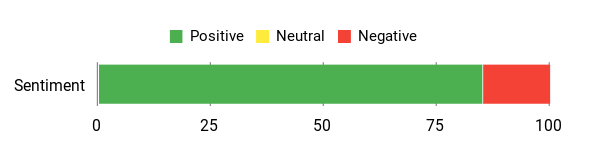
Users repeatedly highlight VEGAS Pro’s practical workflow and bundled audio tools, noting that it’s easier to pick up than some pro suites. People also praise GPU-accelerated rendering and the included motion-tracking and chroma-key plugins.
A few reviews mention activation or seller hiccups, so double-check your purchase source and activation steps.
Overall Sentiment: Positive
🗣️ Charles Lohr
Lots of great Pro features. Supports AMD and NVIDIA GPU accelerated rendering — I saw the iGPU at ~97% and CPU around 35%, and got up to 500 FPS rendering on my setup.
🗣️ letmepicyou
Has everything I need for content creation. Simpler and easier to use than some alternatives, strong audio tools (ACID, SOUND FORGE) and plenty of YouTube tutorials to flatten the learning curve.
Usability
| Aspect | Ease Level | Notes |
|---|---|---|
| Setup | Moderate | Installer is straightforward; activation and occasional re-authentication have tripped some users—follow onscreen steps and keep your code handy. |
| Learning Curve | Moderate | Basic editing is quick to learn with drag-and-drop; advanced features like color grading or AI masks take practice but there are many tutorials. |
| Timeline Editing | Easy | Intuitive timeline with independent audio track control makes cutting and rearranging clips fast. |
| Effects & Plugins | Moderate | Lots of built-in effects and bundled third-party tools; discovering the best ones takes some exploration. |
| Exporting | Easy | Wide export options and presets for common platforms; performance depends on your hardware. |
Performance & Speed
VEGAS Pro Suite 21 benefits strongly from GPU acceleration; reviewers report very fast renders on supported AMD/NVIDIA hardware. Real-world speed will depend on your CPU/GPU, RAM and storage, but the app scales well from quick edits to heavier 4K projects.
Integration
| Software | Integration Quality |
|---|---|
| Windows 10 / 11 | Excellent (native support and optimised for the platform) |
| SOUND FORGE / ACID | Excellent (bundled apps work smoothly with the main editor) |
| Boris FX / Mocha | Good (professional plugins included for keying and tracking) |
| Common export formats (MP4, MOV, ProRes) | Good (wide format support for delivery and collaboration) |
Security Features
| Feature | Protection Level |
|---|---|
| License Activation | Moderate (activation ties license to account or code) |
| Offline Use | High (once activated you can use core features offline) |
| Bundled third-party plugins | Standard (plugin updates and compatibility managed by vendor) |
Collaboration
You can share project files, exports and asset libraries with teammates. There’s no built-in real-time multi-user editing, so collaboration is mostly via shared files or cloud-synced assets.
Updates & Upgrades
VEGAS regularly adds feature updates and AI improvements; bundled tools also receive updates. Keep an eye on the official site for plugin and compatibility patches.
Key Benefits
- All-in-one video and audio toolset — edit, grade, mix and add effects without switching apps
- AI-assisted tools (Z-Depth, Smart Mask) that speed up masking, tracking and creative looks
- Bundled audio apps (SOUND FORGE, ACID) for polishing voiceovers and making custom tracks
- Good GPU acceleration for faster renders when your hardware supports it
- Included motion tracking (Mocha VEGAS) and chroma-key tools (Boris FX Primatte Studio)
- Familiar, drag-and-drop timeline that’s approachable for creators used to quick workflows
Rating: 4.0 (total: 23+)
Moho Debut 13.5

If you want to add simple, polished animations to your YouTube videos or just play around with character animation, Moho Debut 13.5 makes that easy to do. You get vector drawing tools, basic paint and fill, a complete bone rigging system with inverse kinematics, and a content library of characters, props and backgrounds to speed up projects.
For everyday use you can sketch or import art, rig a puppet and record motion without spending hours on frame-by-frame work. For special projects — short intros, character shorts or explainer clips — the bone system and camera tools help you get a more professional look without a huge learning curve. It’s designed for hobbyists and beginners who want more than basic frame animation but don’t need the full complexity of a pro-level suite, and you can move projects into the Pro edition later if you grow beyond Debut.
What People Say
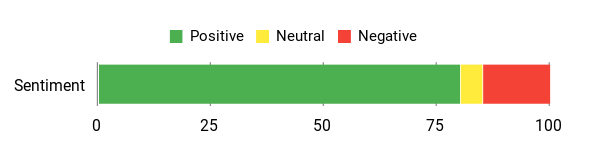
People like that Debut exposes core Moho features—bones, camera and vector tools—without overwhelming you. Reviewers say it’s a practical entry point for learning animation, though some note occasional installation or missing advanced tools compared with the Pro edition.
Overall Sentiment: Positive
🗣️ Chad Troftgruben
You get access to some of Moho’s best features: the Bone system, camera, multiple layer types and vector tools. Debut is a great way to enter the animation world and you can bring Debut project files over to Pro later.
🗣️ ⪨MIND ⪨⪨🎵⪩⪩ PRIME⪩
One of the easiest programs to install I’ve used; the demo project was helpful and entertaining, and I was able to start experimenting with creating a character right away.
Usability
| Aspect | Ease Level | Notes |
|---|---|---|
| Setup | Moderate | Installation is generally straightforward, though a few users reported hiccups with activation or setup—follow the onscreen steps and support guides if needed. |
| Learning Curve | Moderate | Beginner mode and demo projects help you get started quickly; mastering advanced rigging or camera tricks takes a bit more practice. |
| Drawing & Vector Tools | Easy | Intuitive vector drawing, paint and fill tools let you create or import art without wrestling with complex controls. |
| Bone Rigging | Easy | Point-and-click bone attachment and inverse kinematics make puppet animation much faster than frame-by-frame methods. |
| Exporting | Easy | Exports to popular web and video formats for quick uploads to platforms like YouTube. |
Performance & Speed
Moho Debut is lightweight compared with pro suites, so it’s responsive on modest systems and good for quick scene assembly and short exports. Heavy scenes with many layers or complex rigs will slow things down, but typical hobby projects export smoothly for web delivery.
Integration
| Software | Integration Quality |
|---|---|
| Windows / macOS | Good (native support for both desktop platforms) |
| Common graphics programs (import) | Good (you can import artwork from other apps to speed up character design) |
| YouTube / web video formats | Excellent (exports to popular formats ready for upload) |
| Moho Pro | Good (Debut project files can be opened in Pro if you upgrade) |
Security Features
| Feature | Protection Level |
|---|---|
| License Activation | Moderate (activation ties the copy to your account or key) |
| Offline Use | High (core features are usable offline after activation) |
| Patch Updates | Standard (bug fixes and improvements are delivered via updates) |
Collaboration
You can share project files, exported videos and the built-in asset library with collaborators, but there’s no built-in real-time multi-user editing — collaboration happens via shared files or cloud storage.
Updates & Upgrades
Lost Marble issues patches to address bugs and improve stability; users have reported fixes delivered in minor updates. If you outgrow Debut, projects are compatible with Moho Pro so you can upgrade for more advanced tools.
Key Benefits
- Beginner-friendly bone rigging and inverse kinematics for smooth puppet animation
- Vector-based drawing and paint tools with import support from other graphics apps
- Content library of characters, props and backgrounds to jumpstart projects
- Easy export to common web and video formats for YouTube uploads
- Lightweight and approachable workflow suited to hobbyists and first-time animators
- Project compatibility with the Pro edition if you upgrade later
Rating: 4.2 (total: 160+)
FAQ
Which Editing Software Should You Choose For Your YouTube Channel?
You should pick the editor that fits the kind of videos you make and how you like to work. If you need industry‑grade color tools, audio post and an all‑in‑one suite, DaVinci Resolve (and the Speed Editor bundle) is a strong choice; if you want fast, template‑driven edits with powerful AI helpers for photos and video, CyberLink PowerDirector + PhotoDirector is very practical; VEGAS Pro gives you tight Windows‑focused audio and timeline tools, CorelDRAW is useful if you create detailed thumbnails and branding assets, and Moho Debut is handy when you want custom 2D animations or character intros.
Focus on what will save you time and improve your final video—match software to your content and workflow, not just features on paper—and verify platform compatibility (Windows vs Mac) before you commit.
How Do You Optimize Your Hardware And Workflow For Smooth Editing?
You can get much better performance by prioritizing a few upgrades and workflow habits. Use an SSD for your active project files, keep a fast GPU and plenty of RAM for real‑time playback and effects, and offload raw media to separate drives or a fast external scratch disk; enable GPU acceleration and optimized media or proxy workflows in your editor so you can edit at lower resolutions and switch back to full resolution for final export.
Organize media into a consistent folder structure, use render cache or pre‑renders for heavy effects, keep backups of project files, and close unnecessary background apps. Also test export presets for YouTube so your final render uses the right codec, frame rate and bitrate for smooth uploads and playback.
Are AI Tools And Bundled Hardware Like The Speed Editor Worth It And How Do You Use Them Effectively?
AI tools and hardware controllers can save you a lot of time, but you should use them thoughtfully. AI features like noise removal, frame interpolation, quick color suggestions or batch photo fixes can accelerate repetitive tasks and rescue older footage, but always review AI results and make manual tweaks to avoid artifacts or loss of artistic control. If you edit frequently, a hardware controller such as the DaVinci Resolve Speed Editor can make trimming and timeline navigation much faster; it works wired via USB‑C or wirelessly over Bluetooth and shines on the Cut page once you learn the button layout, though there is a short learning curve and activation or redemption for bundled Studio licenses is best done through the official DaVinci site if the included instructions confuse you.
Finally, consider privacy: some AI features run locally (keeping your footage on your machine) while others may use online services, so check your editor’s settings and choose the mode that matches your comfort level.
Creators Top Picks
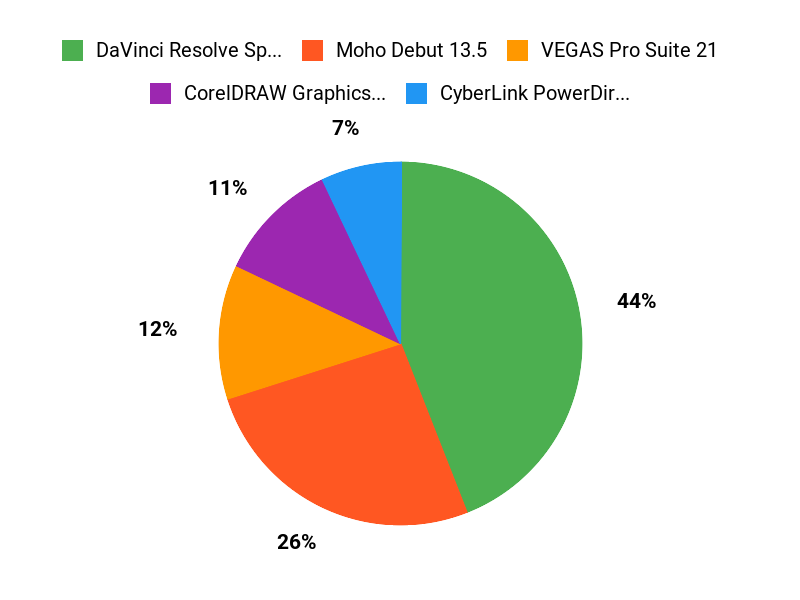
When you’re choosing between the DaVinci Resolve Speed Editor Bundle, CyberLink PowerDirector & PhotoDirector 2026, and CorelDRAW Graphics Suite, you typically prioritize raw editing and color-grading power and tactile speed (what Resolve and the Speed Editor deliver), quick effects and photo-to-video workflows (PowerDirector and PhotoDirector), or vector and branding tools for thumbnails and motion assets (CorelDRAW). Ultimately you weigh speed, the learning curve, workflow fit, and budget to pick the tool or combo that actually speeds up your production and sharpens your channel’s look.
Wrapping Up
Pick the tool that matches what you actually do. If you want a single powerhouse that handles editing, color and audio with a dedicated hardware controller, the Blackmagic DaVinci Resolve Speed Editor Bundle ($475.00) is the best all‑around choice. If you value AI-driven convenience for quick improvements and generative photo tools, CyberLink PowerDirector & PhotoDirector 2026 ($139.99) is a strong option. For raw performance and deep post‑production features on Windows, VEGAS Pro Suite 21 ($199.00) gives you fast renders and pro tools. Use CorelDRAW ($189.00/year subscription) when thumbnails, branding, and vector art matter.
If you want an affordable way to add simple animations to your videos, Moho Debut ($29.99) delivers the most budget‑friendly start. Try demos or trial versions so you can test workflow, system compatibility, and how each program fits your process before committing.
| Product | Image | Rating | Key Highlights | Compatibility | Use Cases |
|---|---|---|---|---|---|
| Blackmagic Design Davinci Resolve Speed Editor Bundle |  | 4.7/5 (616 reviews) |
| Windows & macOS |
|
| CyberLink PowerDirector and PhotoDirector 2026 |  | 5.0/5 (5 reviews) |
| Windows |
|
| CorelDRAW Graphics Suite |  | 4.2/5 (4 reviews) |
| Windows & macOS |
|
| VEGAS Pro Suite 21 |  | 4.0/5 (8 reviews) |
| Windows 10/11 |
|
| Moho Debut 13.5 |  | 4.2/5 (10 reviews) |
| Windows & macOS |
|
This Article is reader-supported. When you click through links we may earn a referral commission on qualifying purchases.